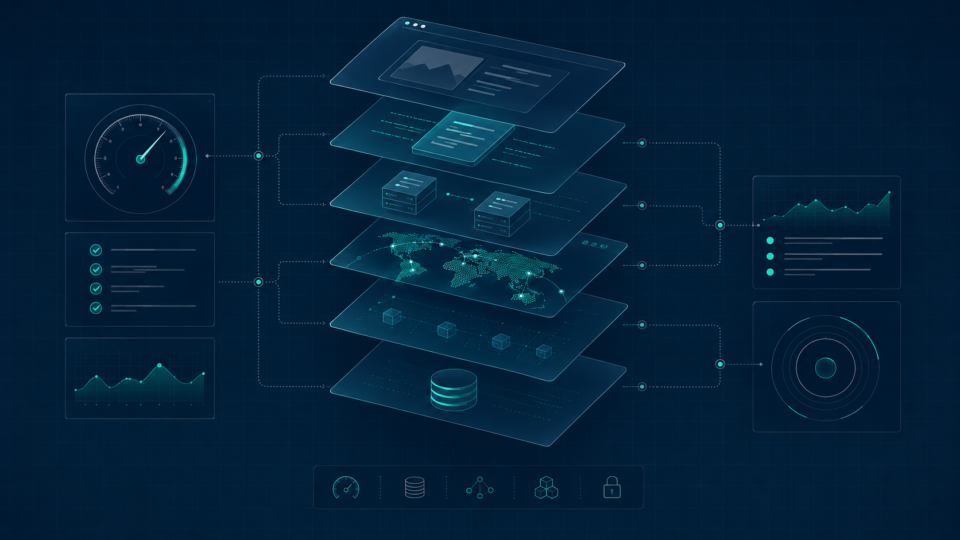
WordPress caching is often treated as a single setting: install a plugin, flip it on, and move on. In practice, caching is several distinct layers stacked on top of each other, each solving a different problem. Understanding what each layer actually does makes it possible to choose a setup that covers the gaps that matter for your site, without running redundant or conflicting systems that cause more problems than they solve.
What caching changes
At its core, caching stores a previously generated result so it can be reused instead of being recreated from scratch on every request. For WordPress, this can mean storing a fully rendered HTML page, a database query result, or a compiled piece of PHP code. Each caching layer intercepts a different, specific point in the process of building a page, which is why a single “enable caching” checkbox in a plugin can never cover everything on its own.
Browser caching
Browser caching instructs a visitor’s browser to store static files, such as images, CSS, and JavaScript, locally, so that a return visit or subsequent page view doesn’t need to re-download them. This is controlled through HTTP response headers (such as Cache-Control and Expires) set by the web server or, in some cases, a caching plugin. Browser caching only benefits repeat visits to the same browser; it does nothing for a visitor’s first page load or for a different visitor entirely.
Full-page caching
Full-page caching stores the complete, rendered HTML output of a page so that future requests can be served that stored copy directly, skipping the PHP execution and database queries that would otherwise be needed to rebuild the page from scratch. This is typically the single highest-impact caching layer for a typical content-driven WordPress site, since it avoids nearly the entire WordPress request cycle for cached visitors. Full-page caching can be implemented at the server level, through a plugin, or through a CDN, and these approaches overlap in function even though they operate at different points in the request path.
Server-level caching
Some hosting environments implement full-page caching directly at the server level, often through a reverse proxy like Varnish, Nginx’s FastCGI cache, or a host-specific caching layer built into their infrastructure. This tends to be faster than a PHP-based plugin cache, because the request can be served before PHP is even invoked. Many managed WordPress hosts include this by default, and in that situation, running an additional plugin-based page cache on top of it is usually unnecessary and can occasionally cause conflicts.
Plugin-based page caching
Plugin-based caching (such as the well-known caching plugins available in the WordPress.org plugin repository) generates and stores static HTML snapshots of pages, typically as files or database entries, and serves them to future visitors without re-running the full WordPress load process. This is the most common caching layer for sites without server-level caching available, and it’s usually straightforward to configure. The main risk is overlap: if a host already provides server-level page caching, adding a plugin-based cache on top rarely improves things further and can introduce cache conflicts or stale-content issues.
CDN and edge caching
A Content Delivery Network (CDN) distributes cached copies of a site’s static assets, and in many configurations, full pages, across servers located in multiple geographic regions, so that visitors are served from a location closer to them. This reduces network latency, which is especially valuable for a globally distributed audience. A CDN can cache static files, full pages, or both, depending on configuration, and can operate alongside server-level or plugin-based caching, provided cache invalidation is coordinated between the layers so that updated content actually reaches visitors. The separate WordPress CDN performance guide explains when that edge layer actually helps and how to verify it.
Object caching
Object caching stores the results of database queries and other computed data so they can be reused within or across requests, reducing repeated load on the database. WordPress includes a basic, non-persistent object cache by default, one that only lasts for the duration of a single page request and does not carry over between visitors. A persistent object cache, using an external store such as Redis or Memcached, keeps this data available across requests, which matters most for dynamic, personalized, or logged-in experiences that full-page caching cannot serve. This requires both server-side support for the backend and a corresponding drop-in file configured to use it; it is not enabled by simply activating a plugin without that backend in place.
PHP OPcache
OPcache is a distinct layer from anything discussed above: rather than caching page content or database results, it stores precompiled PHP bytecode in shared memory so PHP does not need to re-parse the same script files on every request. This is a server-level, PHP-configuration setting, not something a WordPress plugin controls, and it benefits every request regardless of whether full-page or object caching are also active. Many modern hosting environments enable it by default, but it is still worth confirming with the host rather than assuming every plan includes the same configuration; hosting and PHP configuration more broadly are covered in WordPress Hosting, PHP Version, and the Server Performance Floor.
Database caching misconceptions
It’s worth being precise about terminology here, since “database caching” is sometimes used loosely to describe several different things. There is no separate, universal “database cache” layer distinct from object caching; what people usually mean is either the object cache (caching query results) or MySQL/MariaDB’s own internal query cache mechanisms, which are database-server-level settings outside of WordPress’s direct control and, in the case of MySQL’s original query cache, have been removed in modern MySQL versions in favor of other internal optimizations. For most WordPress sites, a persistent object cache is the relevant and available lever here, not a separate “database cache” plugin.
Logged-in and personalized pages
Full-page caching generally cannot and should not serve logged-in users or highly personalized content, since doing so risks showing one visitor’s session data, cart contents, or account information to another. Most caching plugins automatically exclude logged-in sessions from full-page cache by default, which is the correct and expected behavior. This is precisely where object caching becomes valuable instead: it can still reduce database load for logged-in or dynamic requests, even though full-page caching cannot be safely applied to them.
WooCommerce and membership exclusions
E-commerce and membership sites have specific pages that must never be served from full-page cache: the cart, checkout, “my account,” and any page displaying personalized pricing, inventory status, or session-specific content. Reputable caching plugins that support WooCommerce typically include these exclusions automatically, but it’s worth manually verifying that cart and checkout pages are excluded, particularly after switching caching plugins or hosting providers, since a misconfigured exclusion can cause one customer to see another customer’s cart.
Cache purging and invalidation
Every caching layer needs a way to clear or update its stored content when the underlying content changes; without this, visitors can see outdated versions of a page after it has been edited. Most WordPress caching plugins automatically purge relevant cached pages when a post is updated, but layered caching setups (a CDN plus a plugin cache, for example) need their invalidation coordinated, since purging the plugin’s cache does not automatically purge a separate CDN cache layer sitting in front of it. When troubleshooting a change that doesn’t appear to take effect, checking each caching layer individually, rather than assuming one purge clears everything, is a useful diagnostic step.
Why stacking multiple page-cache systems can cause problems
It’s tempting to assume that more caching layers automatically means more speed, but running two full-page caching systems simultaneously, for example, a server-level cache and a plugin-based cache configured to do the same job, often causes more problems than it solves. Symptoms include stale content persisting after updates, conflicting cache headers, and difficulty diagnosing which layer is actually serving a given request. As a general principle, one full-page caching mechanism, working alongside a CDN and an appropriate object cache where warranted, is usually sufficient; additional full-page caching systems layered on top rarely add meaningful speed and increase the chance of conflicts.
A decision framework for different website types
| Site type | Typical caching priorities |
|---|---|
| Small blog or brochure site | Full-page caching (server-level if available, otherwise plugin-based) plus browser caching; object caching optional |
| High-traffic content publisher | Full-page caching, a CDN for global reach, and OPcache confirmed active; object caching if dynamic elements (comments, related-post widgets) are present |
| WooCommerce store | Full-page caching with verified cart/checkout exclusions, persistent object caching for logged-in and dynamic pages, and a CDN for product images |
| Membership or community site | Limited full-page caching due to high volume of logged-in traffic; persistent object caching becomes the primary lever |
These are general starting points rather than fixed rules; the right combination depends on the specific site’s traffic pattern, hosting environment, and plugin stack, and is worth validating against the kind of baseline measurement described in How to Measure WordPress Speed Before Making Any Changes.
A practical caching checklist
- Confirm whether your host provides server-level full-page caching before adding a plugin-based one
- Verify that cart, checkout, and account pages are excluded from full-page cache if running WooCommerce or a membership plugin
- Confirm OPcache is enabled at the server level
- Add persistent object caching (Redis or Memcached) if the site has significant logged-in or dynamic traffic and the host supports it
- Use a CDN for static assets, and for full pages if your audience is geographically distributed
- Test that editing and republishing a page actually clears the cache across every layer in use
- Avoid running two full-page caching systems that serve the same function simultaneously
Common caching mistakes
- Running a plugin-based full-page cache on top of a host’s own server-level cache, causing conflicts
- Forgetting to exclude cart, checkout, or account pages on a WooCommerce site
- Assuming object caching is active just because a caching plugin is installed, without confirming a backend (Redis/Memcached) is actually connected
- Not testing whether content updates actually clear the cache after publishing
- Treating “database caching” as a distinct plugin feature rather than understanding it as object caching or database-server behavior
- Caching logged-in sessions, which can expose one visitor’s data to another
Key Takeaways
- Caching is made up of distinct layers, browser, full-page, server-level, CDN, and object caching, each solving a different part of the request process.
- Full-page caching typically delivers the largest speed improvement for content-driven sites, but cannot safely serve logged-in or personalized content.
- Persistent object caching (Redis or Memcached) is the relevant tool for dynamic and logged-in traffic that full-page caching cannot cover.
- Running multiple full-page caching systems simultaneously usually causes conflicts rather than added speed.
- The right combination of layers depends on the specific site type, and should be verified with real measurement rather than assumption.
FAQs
Do I need a caching plugin if my host already provides server-level caching?
Usually not for full-page caching specifically. Check with your host what is included by default before adding a plugin that duplicates the same function, since running both can cause conflicts.
Is object caching necessary for a small blog?
Not usually. Object caching provides the most benefit for sites with significant logged-in traffic, complex dynamic features, or e-commerce functionality. A small, mostly static blog typically sees more benefit from full-page caching alone.
Why does my WooCommerce cart sometimes show the wrong items?
This is often a sign that cart or checkout pages are not properly excluded from full-page caching. Verify these exclusions directly in your caching plugin’s settings, and test with two separate browser sessions to confirm.
Does a CDN replace the need for full-page caching?
Not necessarily; it depends on configuration. A CDN can cache full pages in some setups, but many CDN configurations only cache static assets like images, CSS, and JavaScript, leaving full-page caching to a separate layer.
Why did my page still show old content after I published an update?
This usually means one caching layer was purged but another was not, for example, a plugin cache cleared automatically while a separate CDN cache layer in front of it was not. Check each caching layer individually when this happens.