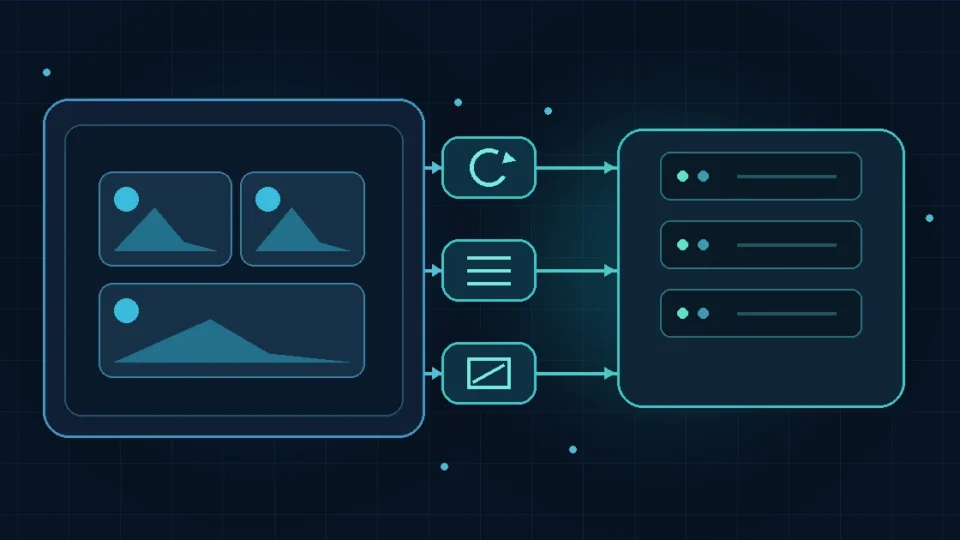
WordPress 7.1 changes where much of the work behind a new image upload happens. On supported browsers, compression, resizing, format conversion, rotation, and thumbnail generation can now run in the browser with WebAssembly before the processed files are sent to the server. That can reduce PHP memory failures and server CPU work during uploads, while also making image output less dependent on whichever GD or Imagick build a host happens to provide.
The important limit is scope. This is primarily an authoring and media-pipeline change, not a blanket front-end speed upgrade. It does not make an existing media library smaller just because WordPress was updated, it does not reduce a slow page’s TTFB, and it does not guarantee a better Core Web Vitals result. The useful question after upgrading is therefore not “did WordPress 7.1 make my site faster?” but “is the new upload path working correctly with my browser, host, image formats, and media-related plugins?”
What changed in WordPress 7.1
Traditionally, WordPress uploads the original image to the server and lets PHP, through GD or Imagick, generate the registered image sizes, rotate from EXIF data, apply format conversion, and perform large-image scaling. That path is sensitive to the host’s available image library, PHP memory limit, and CPU capacity.
WordPress 7.1 adds a client-side path based on wasm-vips, a WebAssembly build of libvips. When that path is available, the browser prepares the image and its registered sub-sizes locally, then uploads those results to WordPress through the media REST API. The server still stores the files and finalizes the attachment metadata. WordPress describes the feature as enabled by default in supporting browsers.
This distinction matters if image uploads have historically failed on a constrained host. The new path can move a burst of image-resizing work away from PHP, but it does not change the resource ceiling involved in ordinary public page requests. If public pages have a slow initial response, use a dedicated WordPress TTFB diagnostic process rather than treating client-side media processing as a server-response fix.
What actually moves to the browser
For supported image types, the client-side pipeline can handle compression, resizing, rotation, format conversion, progressive or interlaced output, and registered thumbnail generation. JPEG, PNG, GIF, WebP, and AVIF are part of the documented WASM/vips pipeline. WordPress also has special handling for HEIC/HEIF inputs, where browser and operating-system codec support determine whether the image can be decoded client-side before a JPEG is handed back into the normal workflow.
The result is still a normal WordPress attachment. Themes continue to receive the expected image sizes, and familiar image settings such as the large-image threshold and output-format configuration remain relevant. Plugins that rely on wp_generate_attachment_metadata still see the attachment lifecycle, including a later update pass after client-generated sub-sizes have been finalized.
That compatibility layer is important, but it is not identical to running the old image editor on the server. WordPress documents several server-specific image hooks that do not fire on the client path because no server-side image editor performed that operation. A plugin that manipulates uploads at a very low level deserves explicit testing rather than an assumption that “the metadata filter still fires” guarantees every workflow is unchanged.
What this means for front-end performance
There are two separate performance stories here, and combining them creates misleading expectations.
1. Upload-time server relief
Image resizing can be memory- and CPU-intensive, especially when a high-resolution upload needs many WordPress sub-sizes. Moving that work to the author’s device can reduce the PHP-side processing spike associated with the upload itself. This is most relevant to content workflows on constrained hosting, not to a visitor loading an already-published page.
If a site regularly reaches its hosting resource ceiling during normal traffic, the broader limits still need to be evaluated independently. CPU allocation, PHP workers, memory, database capacity, and OPcache are part of the WordPress server performance floor; the fact that media generation moved out of PHP does not remove those constraints from uncached page requests.
2. Potentially smaller newly generated images
The WordPress 7.1 developer note says libvips produces better-compressed output than the traditional GD or Imagick path and reports roughly 15% smaller JPEGs with its MozJPEG-like encoding. Treat that as a documented implementation result, not a promise that every image on every site shrinks by the same percentage. Content, dimensions, quality settings, format, and the previous server library all influence the comparison.
More importantly, the improvement is not retroactive. The WordPress 7.1 work does not automatically regenerate the images already sitting in the Media Library; optimization of previously uploaded media was moved to later work. A site with years of existing uploads should therefore not expect an upgrade alone to rewrite its historical image library.
For public-page image performance, the delivery details still matter: which image is actually used, its dimensions, format, responsive srcset, lazy-loading behavior, and whether the LCP image is discovered early enough. Those front-end questions belong in the existing LCP diagnostic workflow rather than being collapsed into a WordPress-version headline.
Browser support and fallback are part of the design
The full WebAssembly pipeline is not available identically in every browser. WordPress’s current developer documentation describes the complete WASM path as Chromium-focused, while HEIC decoding has its own platform-specific support matrix. If the browser cannot use client-side processing, if the device does not have sufficient resources, or if the feature is disabled, WordPress is designed to fall back to the traditional server-side process.
That fallback is why testing should cover more than one authoring environment if a publishing team uses mixed devices. A successful Chrome upload on a modern desktop does not prove that the same HEIC, AVIF, or large JPEG workflow behaves identically in Safari or Firefox. The public site may look the same after the attachment is created, but the path used to create it can differ.
What to test after upgrading to WordPress 7.1
Do not start by benchmarking the homepage. This feature lives in the media-authoring workflow, so the first validation should happen in a staging copy or a safe test post where an upload can be removed afterward.
Start with a normal JPEG or PNG upload
- Upload a representative large image through the block editor.
- Confirm the upload finishes without a stuck progress state or console error.
- Open the attachment details and verify WordPress generated the image sizes expected by the active theme and plugins.
- Insert the image into a test post and confirm responsive sizes and the front-end URL behave normally.
Then test the formats your authors actually use
If authors upload iPhone photos, test HEIC. If the workflow uses AVIF, test AVIF even when the host’s server image library has limited AVIF support, because client-side processing is intended to reduce that dependency. If animated GIFs matter, remember that WordPress’s more efficient video companion is an editor option rather than an automatic replacement of every GIF on the front end.
Test media plugins one responsibility at a time
Pay particular attention to plugins that watermark images, offload attachments to object storage or a CDN, generate custom sizes, strip metadata, change image quality, or convert formats. The safest test is to use the same input file before and after the WordPress upgrade and compare the attachment metadata, generated files, and any remote-copy behavior.
Make one variable change at a time. SitePulse Labs’ guide to building a controlled WordPress performance baseline is written for public-page measurements, but the same isolation principle applies here: if WordPress, a media plugin, a theme, and PHP are all upgraded together, a failed upload becomes much harder to attribute.
Check editor integrations and restrictive security headers
WordPress uses document isolation on relevant editor screens to support the worker-based processing path in Chromium. The official dev note specifically calls out external editor resources, embeds, and Content Security Policy settings as compatibility areas worth testing. A custom CSP that prevents the processing worker from starting should cause a server-side fallback, but the editor integration itself still deserves verification if a site has unusual security or cross-origin requirements.
Known edge cases are a reason to test, not a reason to panic
WordPress 7.1.0 is a major release, and the project has already scheduled WordPress 7.1.1 as a bug-fix maintenance release for September 17, 2026. One reported HEIC case, involving an environment that could not decode the file client-side as expected, was punted to the 7.1.1 work. That does not mean HEIC uploads are broadly broken; it does mean a production workflow that depends heavily on HEIC should be validated on the exact browsers and operating systems the editorial team uses.
The practical response to an edge case is to record the input format, browser, OS, WordPress version, active media plugins, and whether the same upload works when client-side processing is disabled on staging. That creates a useful bug report and a clean comparison. Randomly changing several image plugins or server settings at once removes the evidence needed to identify the cause.
When temporarily disabling the client path can be useful
WordPress exposes the wp_client_side_media_processing_enabled filter for plugins that need to disable the new processing path. That is a developer-level compatibility control, not a general recommendation to turn the feature off on every site.
A temporary disable on staging can be useful as an A/B diagnostic: if a specific upload fails on the client path but succeeds consistently through the server path, the difference helps narrow the investigation. If both fail, the cause is more likely to sit elsewhere in the file, permissions, server environment, or extension stack.
Any production change should be reversible and documented. Avoid editing WordPress Core. If a compatibility plugin or small site-specific plugin is used to control the filter, remove the override after the underlying issue is resolved and retest the normal WordPress path.
Should you run PageSpeed Insights after the upgrade?
You can, but use it for the right question. PageSpeed Insights measures a public URL; it does not tell you whether the browser or PHP generated a newly uploaded thumbnail. If the upgrade produced a smaller new hero image and that image is actually served on the tested page, a lab result may reflect the changed transfer size. That is a downstream consequence, not direct evidence that client-side processing itself is active.
If you do compare public pages, keep the page, device profile, cache conditions, and image constant. The existing guide to reading PageSpeed Insights without misinterpreting the result explains why one score before and one score after an upgrade is not enough to establish causation.
A practical WordPress 7.1 media checklist
- Confirm WordPress 7.1 is running on a staging or controlled test environment first.
- Upload a large JPEG or PNG and verify every expected sub-size exists.
- Test HEIC, AVIF, or animated GIF only if those formats are part of the real editorial workflow.
- Repeat the important upload on the browsers used by actual authors.
- Verify watermarking, CDN/offload, custom image-size, metadata, and format-conversion plugins.
- Check the editor console if an upload stalls or falls back unexpectedly.
- Do not assume existing Media Library files were recompressed by the upgrade.
- Do not attribute a TTFB or Core Web Vitals change to this feature without isolating the actual changed resource.
- Check the current WordPress 7.1.x release notes before treating a reproducible edge case as permanent behavior.
The useful way to evaluate this change
Client-side media processing is a meaningful WordPress 7.1 architecture change because it reduces the site’s dependence on PHP memory, server CPU, and host-specific image libraries during new image uploads. It can also improve the output produced for newly generated images. That is valuable, especially on sites where media processing has been fragile or inconsistent.
It is not a reason to skip normal performance diagnosis. Existing images remain existing images, slow public requests still need server and caching analysis, and image-based LCP still depends on delivery and discovery after the asset has been generated. Treat WordPress 7.1 as a new media pipeline to validate, not as an automatic speed score upgrade, and the testing becomes much more useful.
Sources and further reading
- Make WordPress Core — Client-Side Media Processing in WordPress 7.1
- WordPress Developer Resources — Client-Side Media Processing Architecture
- WordPress Developer Resources — Client-Side Media Processing How-To Guide
- Make WordPress Core — WordPress 7.1 Field Guide
- WordPress/Gutenberg — 7.1 Client-Side Media Tracking Issue
- Make WordPress Core — WordPress 7.1.1 Release Schedule