No plugin, firewall, host, or checklist can make a WordPress website completely secure. Security is a matter of reducing risk and limiting damage, not eliminating it entirely. This checklist, part of the WordPress Security series, covers the practical hardening steps that address the most common ways WordPress sites are actually compromised: outdated software, weak access controls, and the absence of a working backup when something does go wrong.
What WordPress hardening means
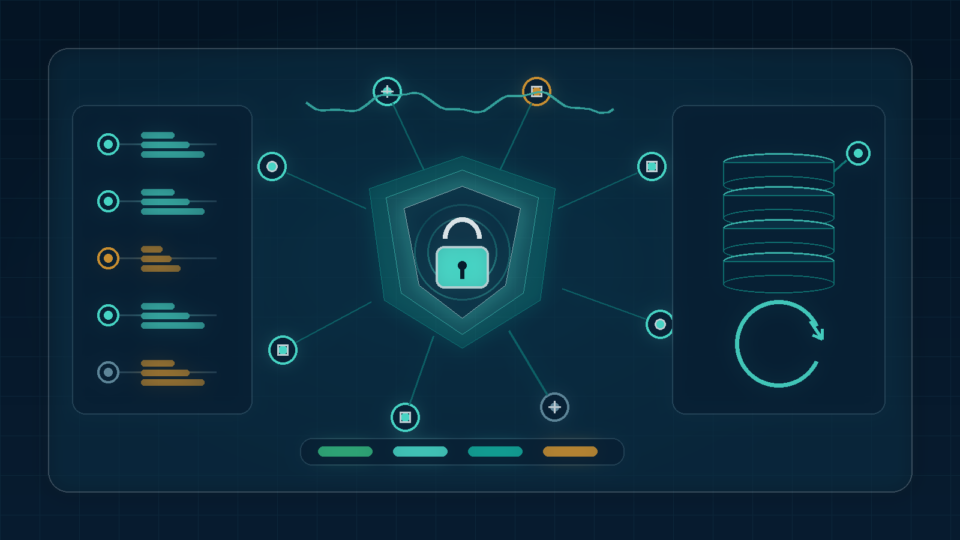
Hardening refers to reducing a system’s attack surface and limiting what an attacker can do if they gain any level of access, rather than assuming any single measure prevents compromise outright. A well-hardened WordPress site combines several independent layers, updated software, restricted access, monitored file changes, and a tested backup process, so a single failure in one layer doesn’t lead directly to full compromise.
Keeping WordPress core, plugins, themes, PHP, and server software updated
The single most consistently cited security recommendation, from WordPress.org, hosting providers, and general security guidance alike, is keeping every layer of the stack current: WordPress core, active plugins and themes, the PHP version (covered in more detail in WordPress Hosting, PHP Version, and the Server Performance Floor), and server-level software. CISA’s guidance on patch management emphasizes prioritizing known, actively exploited vulnerabilities and applying patches promptly rather than deferring them indefinitely. Enabling automatic updates for minor WordPress core releases (frequently security patches) and reviewing major and plugin updates on a regular, short cycle reduces the window during which a known vulnerability remains exploitable on your site.
Removing abandoned and unused plugins or themes
An installed but inactive plugin or theme can still contain exploitable code, and abandoned plugins (no longer receiving updates from their developer) accumulate unpatched vulnerabilities over time with no prospect of a fix. Regularly reviewing installed plugins and themes and removing anything not actively in use, not just deactivating it, reduces the total amount of code that could potentially be exploited.
Trusted plugin and theme sources
Installing plugins and themes only from the official WordPress.org repository, or directly from a reputable, identifiable developer, reduces the risk of installing something that has been deliberately modified to include malicious code, a known risk with plugins and themes obtained from unofficial “nulled” or pirated sources.
Strong passwords and password managers
Weak, reused, or easily guessed passwords remain one of the most common paths to unauthorized access across nearly every type of system, WordPress included. Using a password manager to generate and store long, unique passwords for every account, rather than reusing passwords across sites or relying on memorable patterns, removes much of the practical burden of maintaining strong credentials.
Multi-factor authentication
Multi-factor authentication (MFA) substantially reduces the risk that a stolen password alone can unlock an account, and it is especially important for administrators. Not all methods offer equal protection: phishing-resistant options such as FIDO security keys are stronger than one-time codes. WordPress core does not provide MFA by default, so it requires a reputable plugin, identity provider, or hosting feature.
Administrator accounts and least privilege
The principle of least privilege, giving each account only the access it actually needs, applies directly to WordPress user roles. Not every user who needs to publish content needs full Administrator access; WordPress’s built-in roles (Editor, Author, Contributor, and others) allow more limited access for most day-to-day tasks. Regularly reviewing which accounts hold Administrator privileges, and removing that access when it’s no longer needed, limits the damage a single compromised account can do.
Protecting login and password-reset flows
The default /wp-login.php URL and the default “admin” username (still used on some older or poorly configured installs) are well-known targets. Avoiding an easily guessable administrator username, and considering additional protection on the login page (rate limiting, MFA, or restricting access by IP where practical) reduces the surface exposed to automated attacks. Password-reset flows should also be reviewed to confirm they don’t leak information about which usernames or email addresses exist on the system.
Brute-force and credential-stuffing protection
Brute-force attacks attempt many password guesses against a single account, while credential-stuffing attacks try username/password combinations leaked from unrelated breaches elsewhere, betting on password reuse. Rate limiting login attempts, combined with MFA and strong, unique passwords, addresses both patterns; a security plugin or a server/firewall-level rule can implement the rate limiting specifically.
Secure hosting and file permissions
File and directory permissions should follow least privilege too: WordPress needs to read most files and write to specific directories (like wp-content/uploads), but overly permissive settings across the install expand the attack surface unnecessarily. Reasonable, commonly recommended baseline permissions restrict directories more than files and restrict wp-config.php most of all, though exact values depend on your server configuration and should be confirmed with your host before changing them, since overly restrictive settings can break site functionality.
HTTPS and secure cookies
Serve the entire site over HTTPS, not only login and checkout pages, so credentials and session cookies are encrypted in transit. If HTTPS is correctly configured but WordPress does not already enforce it for administration, the FORCE_SSL_ADMIN constant in wp-config.php can require secure logins and admin sessions.
Database credentials and configuration-file protection
wp-config.php contains database credentials and security keys, making it one of the installation’s most sensitive files. Restrict its file permissions and block direct web access at the server level. WordPress can read the file one directory above the installation in supported layouts, but the official handbook notes that the security benefit is debated and careless moves can create risk. Regenerating keys and salts after a suspected compromise signs out existing sessions.
Disabling risky file editing where appropriate
WordPress’s built-in Theme and Plugin Editor allows direct code editing from the dashboard, which is convenient but means that a compromised administrator account can be used to inject code directly without needing separate file system access. Defining DISALLOW_FILE_EDIT as true in wp-config.php removes this editor from the dashboard entirely; WordPress’s own advanced administration documentation notes this doesn’t prevent an attacker from uploading files through some other means, but it does remove one direct avenue for code injection through a compromised login.
Backup frequency and retention
Backup frequency should match how often content changes: a frequently updated e-commerce or membership site generally needs more frequent backups than a rarely updated brochure site. A commonly referenced general backup principle, sometimes called the 3-2-1 rule, recommends keeping at least three copies of data, on two different storage types, with at least one copy stored off-site or off-server, reducing the risk that a single point of failure (a compromised or failed server, for example) destroys every available backup at once. This same “backup first” discipline also applies before any database cleanup work, as covered in WordPress Database Optimization: Safe Cleanup, Autoloaded Options, and Query Performance.
Off-site backups
A backup stored only on the live server can be lost in the same compromise, hardware failure, or hosting-account incident. Keep at least one copy in a genuinely separate location.
Testing backup restoration
An untested backup is an assumption. Periodically restore one to staging, confirm the site works, and record the approximate recovery time.
Staging environments
A staging environment, a separate, non-public copy of the site used for testing, allows updates and hardening measures to be verified before being applied live, reducing the risk that a well-intentioned change causes unexpected breakage in production.
Security logging and monitoring
Logging login attempts, file changes, and administrative actions provides the information needed to understand what happened during a suspected incident and to distinguish routine activity from something abnormal. Without logging in place beforehand, this kind of investigation after a suspected compromise is considerably harder, since there’s no record to examine.
Malware scanning limitations
Malware scanning plugins and services can detect many known malicious code patterns, but they are not a complete guarantee against compromise; new or customized malicious code can evade signature-based detection, and a scanner is only one layer among the others described here, not a replacement for them. Treat a clean scan result as one useful data point, not proof the site is fully secure.
Web application firewalls
A web application firewall (WAF) filters incoming requests before they reach WordPress itself, blocking many common attack patterns (such as certain SQL injection or cross-site scripting attempts) at the network or application layer. Like malware scanning, a WAF reduces exposure to known attack patterns but does not guarantee protection against every possible attack, particularly novel ones it hasn’t been configured to recognize.
Protecting forms and user uploads
Any form that accepts user input, comment forms, contact forms, or file uploads, is a potential avenue for abuse if not properly validated. Restricting upload file types to what’s genuinely needed, and keeping form-handling plugins updated, reduces the risk of a form being used to inject malicious content or files.
WooCommerce and membership-site considerations
Sites handling customer accounts, payment information, or membership content generally warrant a higher security baseline: more frequent backups given the volume of transactional data changing daily, careful review of which third-party payment or membership plugins have access to sensitive data, and confirming payment handling is appropriately delegated to a compliant payment processor rather than handled directly by custom code.
Incident-response preparation
Before an incident, document who will respond, how to contact the host, where verified backups and logs are stored, and which services must be isolated first. A short written response plan is easier to follow under pressure than improvising during an active compromise.
What to do after a suspected compromise
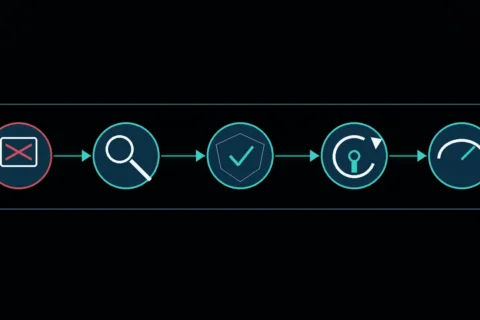
Isolate the affected site where feasible and contact the host or a qualified incident responder. Preserve available logs or snapshots before making destructive changes, then reset affected credentials and regenerate WordPress keys and salts. Restore from a verified clean backup when appropriate, patch the exploited weakness, and check for persistence before returning the site to service. A clean restore without closing the original entry point can lead to reinfection.
Common security-hardening mistakes
- Assuming a security plugin or firewall alone makes the site fully secure
- Leaving unused plugins and themes installed rather than removing them entirely
- Storing backups only on the same server as the live site
- Never testing whether a backup actually restores correctly
- Giving every user account Administrator access regardless of actual need
- Restoring from backup after a compromise without identifying and closing the original entry point
Practical security checklist
- Keep WordPress core, plugins, themes, and PHP updated on a short, regular cycle
- Remove plugins and themes that are no longer actively used
- Use a password manager and enable multi-factor authentication, especially for administrator accounts
- Apply least privilege to user roles; limit Administrator access to those who genuinely need it
- Restrict access to wp-config.php and disable the built-in file editor via DISALLOW_FILE_EDIT
- Serve the entire site over HTTPS and force SSL for the admin area
- Maintain off-site backups and periodically test that they actually restore
- Use a staging environment to test updates and changes before applying them live
- Have a documented incident-response plan before you need one
Key Takeaways
- No single tool or checklist guarantees complete security; hardening is about layering multiple independent protections and limiting damage.
- Keeping software updated and applying multi-factor authentication to administrative accounts address the most common real-world compromise paths.
- Off-site, tested backups are what actually make recovery possible; an untested backup is an assumption, not a guarantee.
- Least privilege, limiting each account to only the access it needs, reduces the damage a single compromised account can cause.
- After a suspected compromise, identifying and closing the original entry point matters as much as restoring a clean backup.
FAQs
Can a security plugin make my WordPress site completely secure?
No single plugin, firewall, or checklist can guarantee complete security. A security plugin is one useful layer among several; it reduces risk but doesn’t eliminate it.
How often should I back up my WordPress site?
It depends on how frequently content changes. A frequently updated e-commerce or membership site generally needs daily or more frequent backups, while a rarely updated site may reasonably need them less often. What matters most is that backups are off-site and periodically tested.
Do I need multi-factor authentication if I already use a strong password?
Yes, it’s still recommended. MFA protects against scenarios a strong password alone doesn’t, such as a password being exposed in an unrelated data breach and reused, or captured through phishing.
Is it safe to disable the WordPress file editor?
Yes, disabling it via DISALLOW_FILE_EDIT is a commonly recommended hardening step with minimal downside; it simply removes the dashboard’s built-in code editor, requiring file changes to be made through FTP, SSH, or a hosting file manager instead.
What should I do first if I suspect my WordPress site has been compromised?
Change all passwords and regenerate security keys, take the site offline if it’s actively serving malicious content, and restore from a verified clean backup where possible, while investigating how access was gained so the same entry point can be closed before the site goes back online.
Sources and further reading
- WordPress Developer Resources — Hardening WordPress
- WordPress Developer Resources — Editing wp-config.php
- WordPress Developer Resources — HTTPS and FORCE_SSL_ADMIN
- WordPress Developer Resources — Changing file permissions
- CISA — Enhanced visibility and hardening guidance
- CISA — #StopRansomware Guide
- CISA — Secure Our World