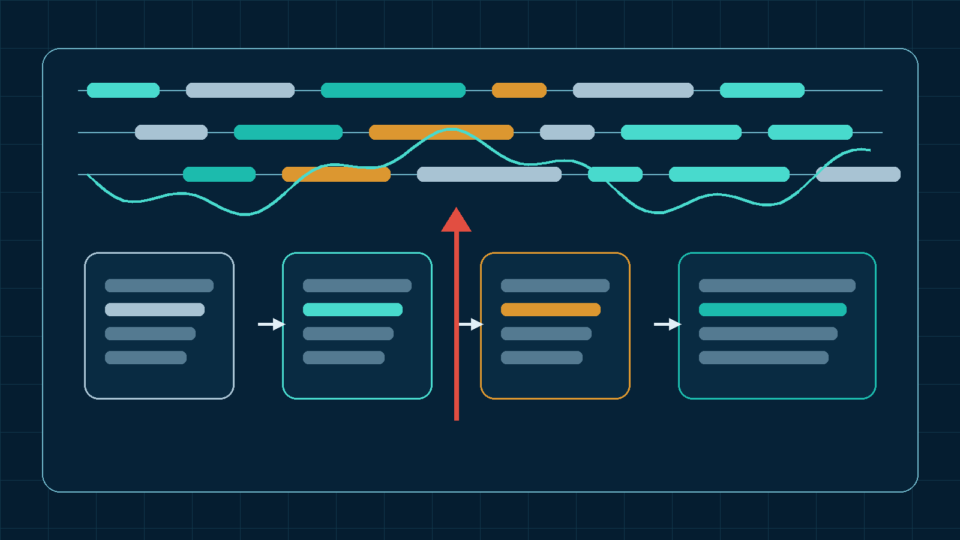
A page can have a fast server and a lightweight database, and still feel slow to appear, because the browser is stuck waiting on a stylesheet or script before it’s allowed to paint anything at all. Render-blocking resources are one of the most consistent causes of a delayed first paint on WordPress sites, and one of the easiest categories to fix carelessly in a way that breaks the design. This guide, part of the WordPress Speed series, covers why these resources block rendering, how to find the ones that actually matter, and how to reduce their impact safely.
What render-blocking resources are
A render-blocking resource is one the browser will not paint any content without, meaning it must be downloaded and processed before the page can visually appear at all. Not every resource qualifies: images and deferred scripts generally don’t block rendering, while stylesheets loaded in the normal way and synchronous scripts in the document head typically do.
The critical rendering path: HTML, CSSOM, DOM, and rendering
As the browser parses HTML, it builds the Document Object Model (DOM). In parallel, it builds a CSS Object Model (CSSOM) from any stylesheets referenced. The browser combines DOM and CSSOM into a render tree before it can calculate layout and paint pixels; this sequence, from parsing HTML through to first paint, is the critical rendering path, and render-blocking resources are the ones sitting directly on it.
Why stylesheets block rendering
Browsers block rendering until the CSSOM is complete because painting content with incomplete style information risks a visible Flash of Unstyled Content (FOUC), an undesirable and jarring visual experience. This is why a stylesheet referenced in the document head, by default, delays first paint until it finishes downloading and parsing, regardless of file size.
Why some scripts block HTML parsing
By default, when the browser’s HTML parser reaches a <script> tag, it pauses parsing to fetch (if external) and execute that script before continuing, since the script could use document.write() or otherwise modify the page in ways that affect everything parsed afterward. This parser-blocking behavior is separate from, but often compounds, the delay already caused by render-blocking CSS.
Async versus defer
For classic external scripts, async and defer both allow downloading while HTML parsing continues. An async script executes when ready, without preserving order with other async scripts; a deferred script executes after parsing and preserves document order among deferred scripts. Choose the strategy according to dependencies and required timing.
Module scripts
Scripts loaded with type="module" are deferred by default, without needing an explicit defer attribute, and support native JavaScript import/export syntax. WordPress core and most plugins still primarily use traditional, non-module scripts, so this matters mainly when custom or modern build-tooled code is involved.
Scripts in the head versus footer
A script placed in the document head is encountered, and by default blocks parsing, before any body content exists. Placing non-critical scripts just before the closing </body> tag, or using wp_enqueue_script()‘s footer argument, allows the HTML content to parse and begin rendering first. This has been standard WordPress practice for years, though async/defer now offer more precise control over the same underlying problem.
Critical CSS and above-the-fold CSS
Critical CSS is the minimal set of styles needed to render the visible, above-the-fold portion of a specific page, inlined directly in the document head so rendering isn’t blocked waiting on an external stylesheet request. The remaining, non-critical CSS is then loaded in a non-blocking way. This is effective but requires regenerating the critical subset whenever a page’s layout changes meaningfully, or visible content can briefly appear unstyled or incorrectly styled.
Unused CSS
Most WordPress themes and plugins load general-purpose stylesheets covering elements that may not appear on every page, comment-form styles on a page with comments disabled, for example. This unused CSS still has to download and parse before render, even though none of it applies, making it a common, avoidable contributor to render-blocking delay.
Code splitting and conditional asset loading
Code splitting breaks a large bundle into smaller pieces loaded only when needed, rather than as one large file on every page. In WordPress terms, this usually means conditionally enqueuing a plugin’s CSS or JavaScript only on the specific templates that actually use that functionality, rather than site-wide, reducing render-blocking weight on pages that don’t need it.
The WordPress enqueue system
wp_enqueue_style() and wp_enqueue_script(), hooked to wp_enqueue_scripts for front-end output, are the correct way to add stylesheets and scripts in WordPress, rather than hardcoding <link> or <script> tags directly into a theme’s template files. The enqueue system handles versioning, avoids duplicate loading of the same asset, and, critically for this topic, manages dependencies and footer placement in a standardized way.
Script dependencies
Both enqueue functions accept a dependencies array, telling WordPress which other registered scripts or styles must load first. This is what reliably prevents “jQuery is not defined” style errors when a script depends on a library like jQuery, since WordPress will automatically load the dependency first rather than requiring the developer to manage load order manually.
Theme stylesheets
A theme’s main stylesheet is typically enqueued via get_stylesheet_uri() and often includes styling for far more page elements and states than any single page actually uses. Auditing whether a theme conditionally loads portions of its CSS, or loads everything unconditionally on every page, is a reasonable first place to look when investigating render-blocking weight.
Block editor and block-library CSS
WordPress enqueues block-library CSS to style core blocks (paragraphs, images, columns, and so on) on the front end. Sites using many blocks need this; sites built primarily with a page builder or classic-editor content may be loading block-library styles they don’t actually use, which is worth checking rather than assuming it’s always necessary.
Plugin-generated CSS and JavaScript
Every active plugin can enqueue its own stylesheets and scripts, and many do so site-wide by default rather than only on pages using that plugin’s specific feature. As covered in WordPress Fonts, CSS, Scripts, and Plugin Weight Explained, auditing plugin-enqueued assets against which pages actually need them is one of the more effective, lower-risk render-blocking fixes available.
Page-builder assets
Page builders often generate their own substantial CSS and JavaScript, sometimes per-page and sometimes globally, to support their layout and design features. These assets are frequently render-blocking by default and can be a significant contributor on builder-heavy sites; check whether the specific builder in use offers any built-in option for conditional or optimized asset loading.
Inline CSS and inline JavaScript
Inline styles and scripts, placed directly in the HTML rather than in an external file, avoid a separate network request but still must be parsed before rendering can proceed if placed in the head. Inlining genuinely critical CSS is a deliberate, useful technique; inlining large, non-critical CSS or JavaScript just to avoid a request is usually counterproductive.
Font stylesheets
A stylesheet that itself references web font files, common with external font-loading services, adds an extra layer of render-blocking behavior and a further request before the referenced font is even discovered. As covered in the fonts and scripts article referenced above, font-display strategy and self-hosting both interact with this specific concern.
Third-party scripts
Analytics, advertising, and embed scripts loaded from external domains are outside direct control to optimize, and synchronous third-party scripts placed in the head are a common, easily overlooked source of render-blocking delay. Auditing which third-party scripts are genuinely necessary, and applying async where the script doesn’t need to run before anything else, is usually the most practical fix available.
Consent-management scripts
Cookie-consent and privacy-management scripts are often deliberately loaded early and render-blocking by design, since many implementations need to run before other tracking scripts are permitted to load. This is a case where some render-blocking behavior may be an intentional trade-off for legal or privacy compliance rather than a straightforward optimization target.
Delaying non-essential JavaScript
Applying defer, or in appropriate cases async, to scripts that don’t need to run before the page is visually usable reduces their impact on first paint. WordPress’s strategy argument for wp_enqueue_script() (available since WordPress 6.3) provides a standardized way to apply this without manual output filtering.
Risks of delaying interactive scripts
Not every script is safe to delay. A script responsible for a mobile menu, a form validator, or an add-to-cart button needs to be available by the time a visitor tries to use that feature; deferring it usually just changes when it becomes available (still before interaction, in practice), but making it async, with no guaranteed order relative to its dependencies, can break functionality if load order matters.
Preload, preconnect, and resource hints
<link rel="preload"> tells the browser to fetch a specific, critical, often late-discovered resource (a font file or an LCP background image) earlier than it would otherwise be found. <link rel="preconnect"> establishes a connection (DNS, TCP, TLS) to a third-party origin in advance, saving time when the actual request fires. Both are resource hints, distinct from the render-blocking resources themselves, that help the browser prioritize what it fetches and when.
Why preload should be used selectively
Preload is treated as a mandatory instruction by the browser, competing directly with other high-priority resources like render-blocking CSS. Preloading too many resources undermines the browser’s own prioritization and can slow down the very content it was meant to speed up; reserve it for a small number of genuinely critical, late-discovered resources rather than applying it broadly.
Identifying resources with PageSpeed Insights and Chrome DevTools
PageSpeed Insights’ “Render blocking resources” diagnostic lists specific blocking stylesheets and scripts with an estimated savings figure, as covered in How to Use PageSpeed Insights for WordPress Without Misreading the Results. Chrome DevTools’ Network panel and Performance panel, covered in Chrome DevTools Performance Panel for WordPress, show the actual request waterfall and highlight the render-blocking period directly against the timeline.
Testing visual stability, interactions, and mobile
After changing script or stylesheet loading behavior, visually check representative pages for layout problems, and manually test interactive elements (menus, forms, sliders) to confirm nothing broke. Test on mobile specifically, not only desktop, since mobile layouts and touch-based interactions can reveal problems a desktop-only check misses, and mobile is generally the more performance-constrained environment besides.
Logged-in versus logged-out testing
Always confirm changes on a logged-out view as well as logged-in, since admin-only scripts, the admin toolbar, and certain plugin behaviors differ between the two states, and a fix that looks fine while logged in can still affect what public visitors actually experience.
Cache, minification, and HTTP/2 or HTTP/3 considerations
Minification and file-combining can change load order and undermine per-file async/defer settings. HTTP/2 and HTTP/3 reduce some of the request overhead that made combining essential under HTTP/1.1, but file size, compression, caching, and prioritization still matter. Test the complete delivery path rather than following a universal rule.
Common optimization-plugin mistakes
- Enabling “defer all JavaScript” or “delay all scripts” settings without testing individual interactive features afterward
- Inlining or combining every CSS file indiscriminately, including large, non-critical stylesheets
- Applying async to a script whose functionality depends on another script loading first
- Removing block-library CSS without confirming the site doesn’t actually rely on core blocks
- Preloading many resources at once, competing with genuinely critical content
- Never regenerating critical CSS after a layout or content change, causing a mismatch
Safe rollback procedure
Before making changes, note which plugin settings or code changes were applied and in what order, and keep a backup or staging snapshot available. If a change breaks layout or functionality, reverse it individually rather than disabling everything at once, so the specific cause can still be identified rather than lost.
Practical render-blocking audit checklist
- Identify actual render-blocking resources using PageSpeed Insights and Chrome DevTools, rather than guessing
- Apply defer (or, where safe, async) to non-critical scripts, testing interactive features afterward
- Move genuinely non-critical scripts to the footer or apply WordPress’s enqueue strategy argument
- Audit theme, plugin, and page-builder CSS for site-wide loading that could be conditional instead
- Consider a critical CSS approach for high-traffic templates, with a plan to keep it updated
- Use preload only for a small number of genuinely critical, late-discovered resources
- Test visual stability and interactions on both mobile and desktop, logged-in and logged-out
- Keep a rollback plan and change one thing at a time
Key Takeaways
- Render-blocking resources delay first paint because the browser won’t paint until CSSOM is complete and any parser-blocking scripts have run.
- Async and defer solve the parsing-block problem differently; the right choice depends on whether a script’s order or timing actually matters.
- WordPress’s enqueue system, dependencies, and footer/strategy options are the correct, safe mechanism for controlling script and style loading, rather than manual template edits.
- Not every CSS or JavaScript file should be removed, combined, delayed, or inlined; some third-party and consent scripts are deliberately render-blocking for good reasons.
- Always test visual stability and interactive functionality, on both mobile and logged-out views, after making loading-behavior changes.
FAQs
Should I defer every script on my WordPress site to improve speed?
No. Some scripts, particularly ones controlling immediately visible interactive elements, may need to run without delay. Test each change individually and confirm functionality still works before applying it broadly.
Is critical CSS worth the effort for a small site?
It depends on the site’s traffic and how often layouts change. Critical CSS meaningfully helps first paint but requires ongoing maintenance; for a small, rarely updated site, simpler fixes like conditional asset loading may offer a better effort-to-benefit ratio.
Why did my mobile menu stop working after I optimized my scripts?
This often happens when a script executes before a dependency or before the expected DOM is available. Restore the previous strategy, verify its dependency chain, and retest rather than assuming one loading attribute is always correct.
Does combining all my CSS and JavaScript files always help?
Not necessarily, especially under HTTP/2 or HTTP/3, where many smaller requests are less costly than under older protocols. Combining can also interfere with per-file async/defer settings. Test the actual effect rather than assuming it always helps.
How many resources should I preload?
Only a small number of genuinely critical, late-discovered resources, such as a hero image or a key font file. Preloading too much competes with other high-priority content and can slow down the page rather than speeding it up.